
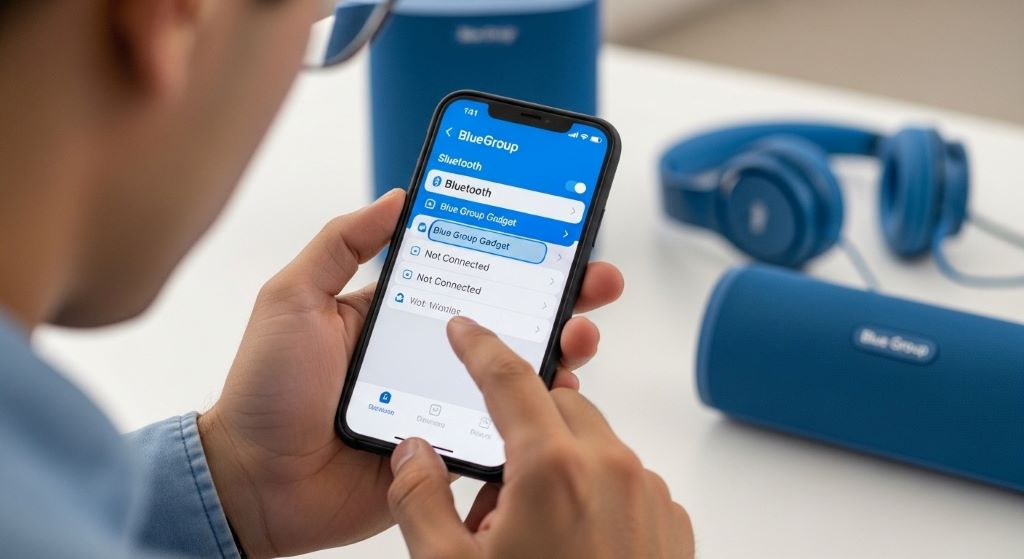
Blue Group gadgets have become household staples for millions of users worldwide. These devices simplify daily tasks through smart technology and wireless connectivity. However, even the most reliable gadgets occasionally experience technical difficulties that disrupt their functionality.
This comprehensive guide walks you through troubleshooting common Blue Group gadgets issues. Understanding these solutions empowers users to resolve problems quickly without professional assistance. Therefore, you’ll spend less time frustrated and more time enjoying your devices.
Understanding Blue Group Gadgets Connectivity Problems
Connectivity issues rank among the most frequently reported problems with Blue Group devices. Bluetooth pairing failures prevent gadgets from communicating with smartphones, tablets, and computers. Additionally, wireless network disconnections interrupt smart home functionality and data synchronization.
Start troubleshooting by checking your device’s Bluetooth status. Navigate to settings and ensure Bluetooth is enabled and discoverable. Many connectivity problems stem from accidentally disabled wireless features rather than actual hardware malfunctions.
Distance affects Bluetooth connection quality significantly. Move your Blue Group gadget within 30 feet of the paired device for optimal performance. Walls, metal objects, and other electronics can interfere with wireless signals. Therefore, removing physical barriers often restores stable connections.
Restart both your Blue Group gadget and the device you’re pairing it with. This simple step clears temporary software glitches causing connection failures. Hold the power button for 10 seconds, wait 30 seconds, then power on again.
According to CNET, removing and re-adding Bluetooth devices solves most pairing issues by clearing corrupted connection data.
Resolving Battery Drain and Charging Issues
Rapid battery depletion frustrates users who depend on portable Blue Group gadgets throughout the day. Several factors contribute to faster-than-expected power consumption. Understanding these causes helps identify effective solutions.
Check which features consume the most battery power. Constant GPS tracking, maximum brightness settings, and continuous wireless connections drain batteries quickly. Navigate to battery usage statistics in your device settings to identify power-hungry applications.
Reduce screen brightness to extend battery life significantly. Most users keep brightness unnecessarily high for indoor use. Additionally, enable auto-brightness features that adjust based on ambient lighting conditions.
Background applications continue running even when you’re not actively using your gadget. Close unnecessary apps and disable background refresh for non-essential programs. This conservation method can extend battery life by several hours daily.
Charging problems often result from debris accumulating in charging ports. Inspect the port carefully using a flashlight and remove lint or dust with compressed air. However, never insert metal objects that could damage delicate charging contacts.
Try different charging cables and power adapters to isolate the problem source. Cables wear out faster than devices themselves, developing internal breaks invisible to the eye. Therefore, keeping spare certified cables prevents extended downtime.
Fixing Audio Quality and Sound Problems
Audio issues manifest in various ways across Blue Group gadgets. Users report distorted sound, volume fluctuations, or complete audio failure. These problems affect speakers, headphones, and microphone functionality alike.
Start by checking volume settings at both the device level and within individual applications. Some apps maintain separate volume controls that override system settings. Moreover, ensure silent mode or do-not-disturb features aren’t accidentally activated.
Clean speaker grilles and microphone openings gently with soft-bristled brushes. Accumulated debris blocks sound pathways, reducing audio quality noticeably. Additionally, moisture exposure can temporarily affect speaker performance until completely dried.
Test audio output with different media sources to determine if problems affect specific apps or all audio. Play music, videos, and ringtones to establish patterns. This diagnostic approach identifies whether issues stem from software or hardware sources.
Bluetooth audio devices sometimes experience lag or stuttering during playback. This happens when devices attempt connecting to multiple gadgets simultaneously. Disconnect unused Bluetooth peripherals to free bandwidth for your primary audio device.
Update audio drivers and firmware through your Blue Group gadget’s settings menu. Manufacturers regularly release patches addressing known audio bugs. Therefore, keeping software current prevents many common sound problems.
Addressing Screen Display and Touch Responsiveness Issues
Display problems significantly impact user experience with Blue Group gadgets featuring touchscreens. Issues range from unresponsive touch inputs to display flickering and discoloration. Fortunately, many screen problems resolve through systematic troubleshooting.
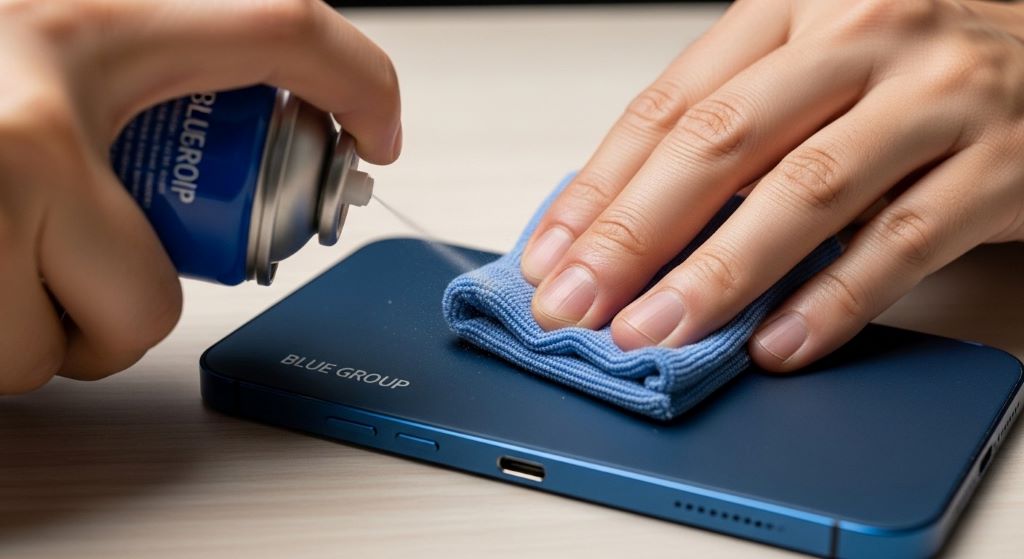
Clean your screen thoroughly using microfiber cloths designed for electronics. Oil, dirt, and residue from fingers interfere with capacitive touch sensors. Additionally, screen protectors sometimes develop air bubbles reducing touch sensitivity.
Restart your device to refresh the display driver and touch input system. Software glitches occasionally cause temporary screen freezing or erratic touch response. This quick fix resolves many intermittent display issues without further intervention.
Check for stuck or damaged screen protectors that might affect touch accuracy. Remove and replace protectors showing signs of wear, bubbling, or cracking. Moreover, ensure any replacement protectors are specifically designed for your Blue Group gadget model.
Adjust screen timeout settings if your display turns off too quickly during use. Navigate to display settings and extend the timeout period to match your usage patterns. However, remember longer screen-on times reduce battery life proportionally.
Enable developer options to test touch screen sensitivity and responsiveness. These diagnostic tools identify dead zones or areas with reduced sensitivity. Most Blue Group gadgets include built-in testing modes accessible through specific button combinations.
Solving Software Crashes and Freezing Problems
Application crashes and system freezes disrupt workflow and cause data loss. These software issues stem from various sources including insufficient memory, corrupted files, and incompatible applications. Identifying the root cause determines the appropriate solution.
Force close frozen applications by accessing your device’s app manager or task switcher. Hold the back button or use designated gestures to view running apps. Swipe away problematic applications to terminate them completely.
Clear application cache regularly to prevent data accumulation causing crashes. Navigate to settings, select storage, and choose cache clearing options. This maintenance task frees memory space while removing corrupted temporary files.
Uninstall recently added applications if crashes began after new installations. Incompatible or poorly coded apps destabilize entire systems. Therefore, remove suspicious applications one at a time while monitoring system stability.
Update your Blue Group gadget’s operating system to the latest available version. Software updates include bug fixes addressing known crash causes and security vulnerabilities. Additionally, updates optimize performance and compatibility with newer applications.
According to The Verge, regular software updates and periodic factory resets maintain optimal device performance and prevent accumulating software problems.
Troubleshooting Sensor Malfunctions
Blue Group gadgets incorporate various sensors including accelerometers, gyroscopes, proximity sensors, and ambient light detectors. These components enable features like auto-rotation, step counting, and automatic brightness adjustment. Sensor failures disrupt these convenient functions.
Calibrate sensors through your device’s settings menu or dedicated calibration apps. Place your gadget on level surfaces during calibration for accurate baseline measurements. Moreover, perform calibration in different lighting conditions for light sensors.
Remove cases and screen protectors temporarily to test if they’re blocking sensors. Some accessories inadvertently cover proximity sensors near screens, causing unintended screen behavior during calls. Therefore, ensure accessories include proper cutouts for all sensors.
Restart your Blue Group gadget to reset sensor firmware and clear temporary glitches. Many sensor issues resolve through simple reboots without requiring technical intervention. This should be your first troubleshooting step for sensor problems.
Test sensors individually using diagnostic applications available in app stores. These tools provide real-time sensor data helping identify which specific sensors malfunction. Additionally, diagnostic apps often include built-in calibration features.
Fixing Overheating and Performance Issues
Excessive heat generation indicates your Blue Group gadget is working harder than normal. Overheating reduces performance, accelerates battery drain, and potentially damages internal components. Addressing heat problems protects your device’s longevity.
Close resource-intensive applications running in the background. Games, video streaming, and navigation apps place heavy demands on processors generating significant heat. Additionally, limit multitasking when performing demanding tasks.
Remove protective cases during intensive use allowing better heat dissipation. Cases trap heat against device bodies preventing natural cooling. However, remember to reattach cases after cooling periods for continued protection.
Avoid using Blue Group gadgets in direct sunlight or hot environments. External heat compounds internal heat generation, pushing temperatures to critical levels. Therefore, seek shade or air-conditioned spaces during summer months.
Reduce screen brightness and disable unnecessary wireless features during performance slowdowns. These adjustments decrease processor workload allowing devices to operate cooler. Moreover, enabling power-saving modes automatically implements these optimizations.
Check for runaway processes consuming excessive CPU resources. Navigate to battery or performance settings to identify problematic applications. Uninstall or update apps showing abnormal resource consumption patterns.
Resolving Camera and Photography Issues
Camera malfunctions prevent capturing important moments with Blue Group gadgets. Common problems include blurry images, focusing failures, and camera app crashes. These issues often have straightforward solutions requiring no technical expertise.
Clean camera lenses thoroughly using microfiber cloths designed for optics. Fingerprints, smudges, and dust significantly degrade image quality. Additionally, check that protective cases don’t partially obstruct camera openings.
Restart the camera application or your entire device when experiencing persistent focusing problems. Software glitches occasionally prevent autofocus mechanisms from functioning correctly. This simple reset often restores normal camera operation.
Check available storage space before important photography sessions. Insufficient memory prevents cameras from saving new photos and videos. Therefore, regularly transfer media to computers or cloud storage to maintain adequate free space.
Adjust camera settings if images appear too dark, bright, or poorly colored. Reset camera settings to defaults if previous adjustments created problems. Moreover, experiment with HDR modes and exposure compensation for challenging lighting conditions.
Update camera applications to access latest features and bug fixes. Manufacturers continuously improve image processing algorithms through software updates. Additionally, updated apps often include compatibility fixes for newer operating system versions.
Addressing Notification and Alert Problems
Missing notifications causes users to overlook important messages, calls, and app alerts. Conversely, excessive notifications become disruptive and annoying. Properly configured notification settings ensure you receive important alerts without overwhelming distractions.
Verify notification permissions for essential applications in system settings. Apps require explicit permission to display notifications on most Blue Group gadgets. Navigate to app permissions and enable notifications for priority applications.
Check do-not-disturb schedules that might silence notifications during unintended times. Review scheduled quiet hours ensuring they align with your preferences. Additionally, customize do-not-disturb exceptions for critical contacts and apps.
Adjust notification channels within individual applications for granular control. Many apps categorize notifications by type, allowing selective enabling or disabling. Therefore, you can receive urgent alerts while blocking promotional messages.
Test notification sounds and vibration patterns to ensure they’re audible and noticeable. Some users accidentally select silent ringtones or disable vibration. Moreover, verify your device isn’t in silent mode when expecting important notifications.
Clear notification logs if your device struggles displaying new alerts. Accumulated notifications sometimes prevent new ones from appearing correctly. This maintenance task refreshes the notification system.
Performing Factory Resets as Last Resort
Factory resets erase all data and settings, returning Blue Group gadgets to original configurations. This drastic measure solves persistent problems unresolved through other troubleshooting methods. However, proper preparation prevents permanent data loss.
Back up all important data before initiating factory resets. Transfer photos, videos, contacts, and documents to cloud storage or computers. Additionally, note application login credentials for easy restoration after reset.
Navigate to backup and reset options in system settings. Review all available backup options ensuring critical data is preserved. Most Blue Group gadgets offer automatic cloud backup features protecting against data loss.
Follow on-screen instructions carefully during the reset process. Devices typically require confirmation preventing accidental resets. Moreover, keep gadgets plugged into power during resets preventing interruptions from battery depletion.
Restore your device from backups after factory reset completion. Download essential applications first, then restore personal data systematically. Therefore, you’ll quickly return to normal functionality with resolved technical issues.
Conclusion
Troubleshooting common Blue Group gadgets issues requires systematic approaches and patience. Most problems resolve through simple solutions like restarts, cleaning, and settings adjustments. Connectivity problems often fix through re-pairing, while battery issues improve with optimized settings. Audio and display problems typically respond to cleaning and software updates. Additionally, sensor calibration and cache clearing address many software-related issues. Factory resets serve as effective last resorts when other methods fail. Therefore, following these troubleshooting steps empowers users to maintain optimal device performance independently, saving time and avoiding unnecessary repairs.
Frequently Asked Questions
Why does my Blue Group gadget keep disconnecting from Bluetooth?
Bluetooth disconnections typically result from distance, interference, or outdated firmware. Keep devices within 30 feet, remove physical barriers, and update both gadgets to latest software versions. Additionally, unpair and re-pair devices to clear corrupted connection data.
How can I improve my Blue Group gadget’s battery life?
Reduce screen brightness, disable unnecessary wireless features, close background applications, and enable battery saver mode. Additionally, avoid extreme temperatures and charge batteries before complete depletion. These practices significantly extend daily battery performance.
What should I do when my touchscreen becomes unresponsive?
Clean your screen with microfiber cloth, remove screen protectors temporarily, and restart your device. If problems persist, check for software updates or perform screen calibration through settings. Additionally, test touch sensitivity in safe mode to identify problematic applications.
Why is my Blue Group gadget overheating during normal use?
Overheating usually indicates resource-intensive background processes or environmental factors. Close unnecessary applications, remove protective cases temporarily, avoid direct sunlight, and ensure adequate ventilation. Moreover, malware scans can identify hidden processes consuming excessive resources.
When should I perform a factory reset on my Blue Group gadget?
Factory resets should be last resorts after exhausting other troubleshooting methods. Consider resets for persistent crashes, severe performance degradation, or before selling devices. Always back up data completely before resetting to prevent permanent information loss.
Related Topics:
The Best USB 3.0 Keys and The Cheapest USB Sticks of 2019
Fossil Sport Smartwatch, a real alternative with Wear OS